Touchscreen-based devices
Basic Tracking
To enable basic tracking, you just need to open the app menu -> tracking and disable the “Advanced Tracking” option. If you started the match, you have to restart it to apply the change.
Now, all you need is just tap the left side of your screen to add your point, or tap the right side to add the point to your opponent. Simple as that.
Advanced Tracking
Advanced tracking is enabled by default when you install the app. You can enable or disable it in the app menu under -> tracking -> advanced tracking switch.
Context menu
The context menu is enabled by default. Simply tap the screen to open the menu, then select the desired option.
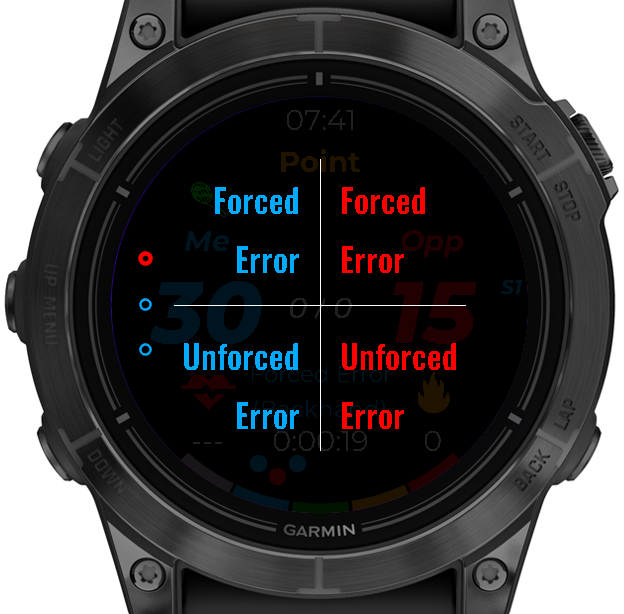
Gestures
To track the points, you have to tap, double-tap, or hold the screen. The left side (blue) is your points’ area, the right side is your opponent’s. You can also choose the score type. By tap – the top of the screen is a forced error, the bottom is a forced error, by holding: the top is a score by the winner, and the bottom is the ace / double fault (it is dependent on who the server is), by double-tapping: dirty ace (serve winner) or return winner.
To switch between the first and the second serve, swipe up.
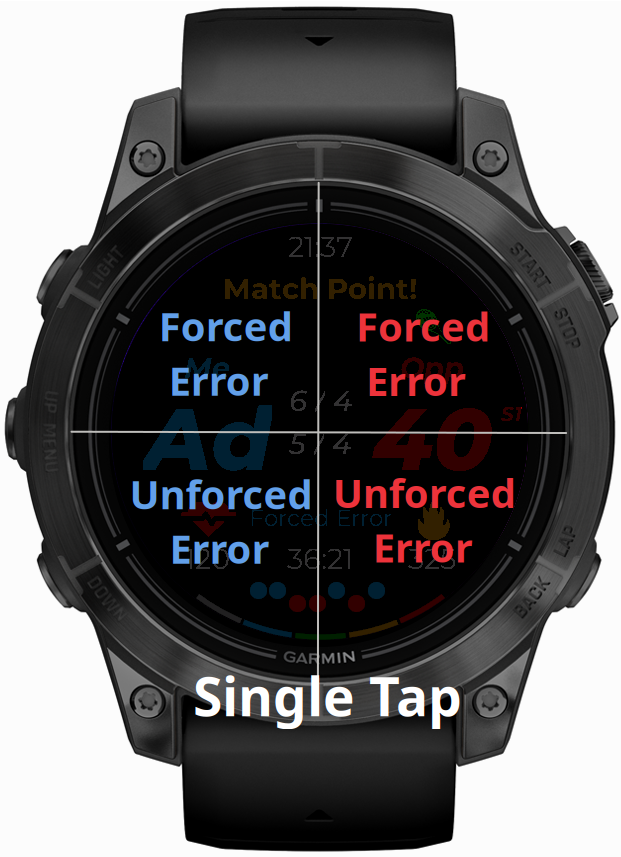
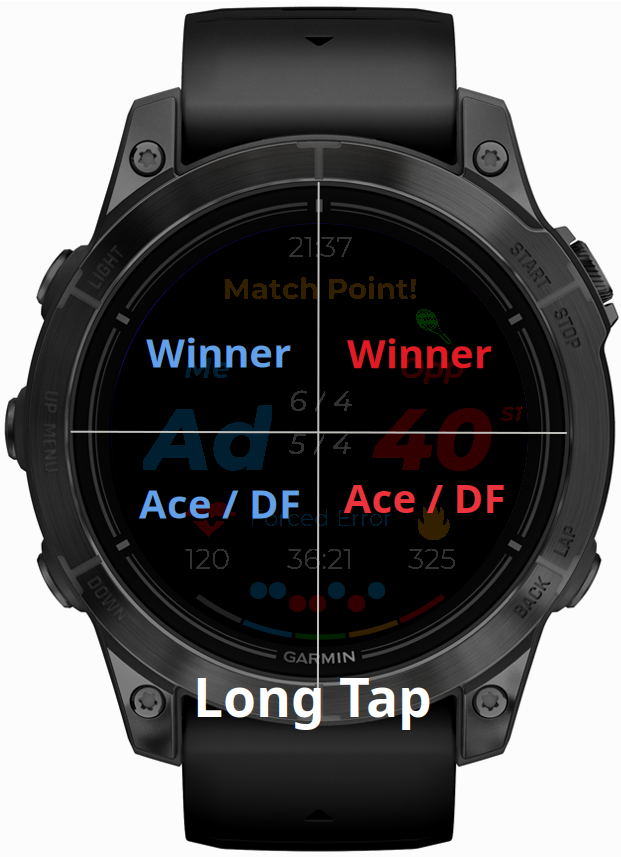
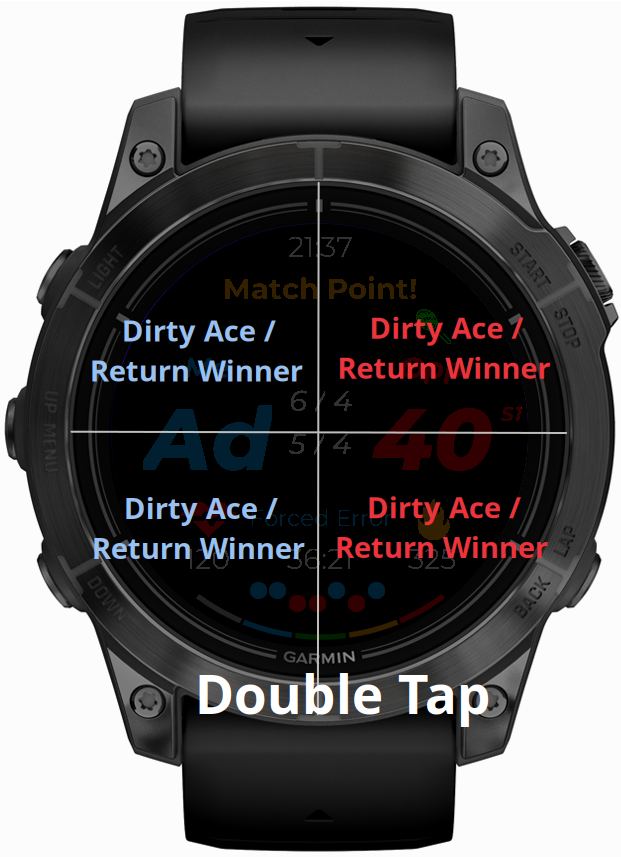
Shot context (Backhand, Forehand, NET) Tracking
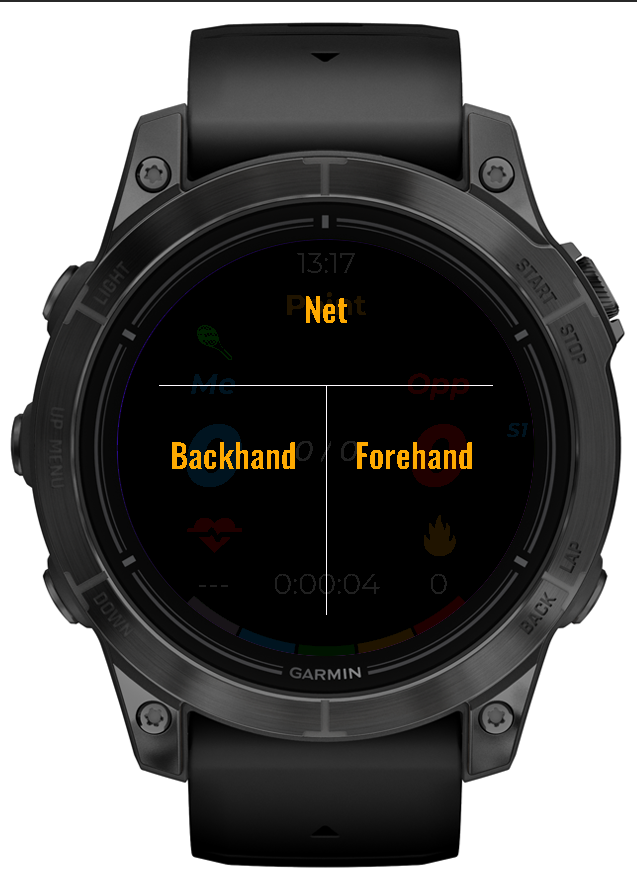
Shot context is an additional layer of point recording.
You can enable this option under app menu -> tracking -> Shot Context switch. Hovewer, note that this option works only with “Advanced Trakcing” enabled, so even if you enable it, it won’t work until you turn on Advanced Tracking as well. To mark shot context, first mark the shot type (winner, unforced error, etc) and then you will see additional menu to tap for the conext (see screenshot). Note that you mark your last shot type, not your opponent. Shot context measures your FH / BH / NET performance, so we need to know whether the opponent’s forced error is caused by your forehand, or net action. This menu doesn’t show in certain situations – for example, if opponent hit the ace – you don’t mark the context, because you didn’t even touch the ball. So, this menu will be visible after errors (forced and unforced), winners, opponent’s dirty ace and, your return winner.
Button-based Devices
In button-based devices to add the point you need to click the button. To add your score click the “UP” button and the “DOWN” for your opponent. To switch between the first and the second serve click the “back” button. The number of clicks determines the score type.